
Navigation
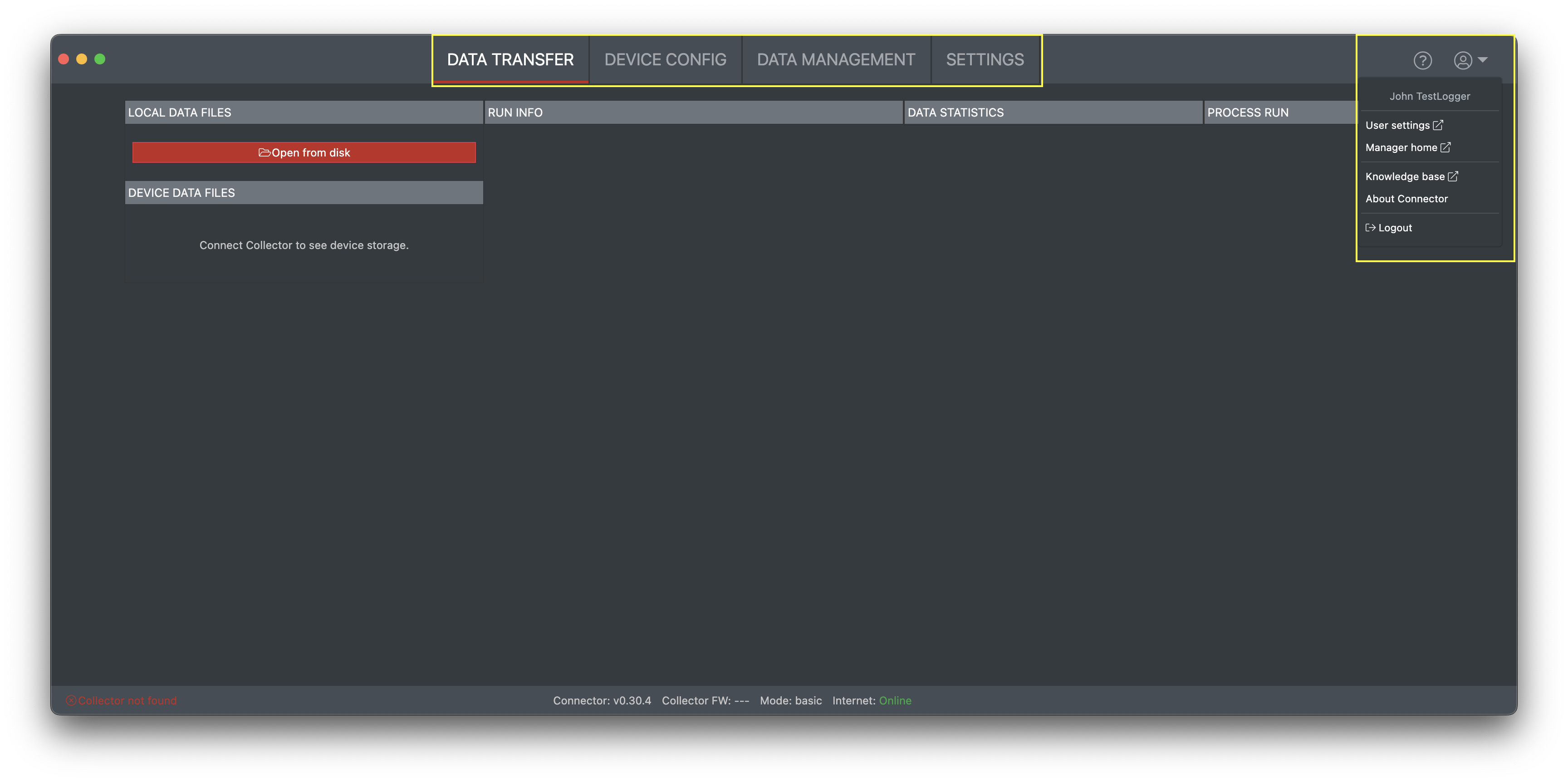
TestLogger Connector has simple navigation and application has four different sections. Sections are.
-
Data transfer - Used for transfering data from memory card or via USB and creating runs
-
Device config - Collector configuration and calibration is done on this section
-
Data management - TestLogger Manager related data like sessions, tracks, cars and managed from here
-
Settings - Application settings.
Navigation is from top of the main window by clicking the headings
Clicking the user icon will open additional user menu for links to TestLogger Manager, TestLogger help and About window. Also logout will done via the user menu.
Status bar
Status bar is located on the bottom of main window and purpose is to messages and statuses for user.

Status bar is divided in to three section and are desrcribed below
-
Left side: Collector connection status. Also includes buttons to connect Collector, disconnect Collector and to trigger firmware update.
-
Middle section: Indicates version numbers for Connector and Collector. Also indicates if internet connection is active and if user mode is Advanced or Basic.
-
Right side: Status messages like errors, warnings, infos after actions are completed. Also shows progress bar when transferring data or saving configuration to device.
Keyboard shortcuts
|
Action |
Shortcut Mac |
Shortcut Windows |
|---|---|---|
|
Connect device |
Cmd+Shift+c |
Ctrl+Shift+c |
|
Disconnect device |
Cmd+Shift+d |
Ctrl+Shift+d |
|
Switch to Data transfer tab |
Cmd+1 |
Ctrl+1 |
|
Switch to Device config tab |
Cmd+2 |
Ctrl+2 |
|
Switch to Data management tab |
Cmd+3 |
Ctrl+3 |
|
Switch to Settings tab |
Cmd+4 |
Ctrl+4 |
|
Save config |
Cmd+s |
Ctrl+s |
|
Save config to device |
Cmd+Shift+s |
Ctrl+Shift+s |
|
Edit laptimes |
Cmd+e |
Ctrl+e |
|
Start calibration mode |
Cmd+Shift+a |
Ctrl+Shift+a |
|
Stop calibration mode |
Cmd+Shift+z |
Ctrl+Shift+z |